0 / 5000
Seedream AI Image Generator and Photo Editor
Seedream is ByteDance’s family of AI image models for generating pictures and editing them with text instructions. On Seedancer, start with a description or upload reference images to shape the subject, composition, and style. Create standalone visuals or prepare an image to animate with Seedance.
Create Images for Your Next Project
Use Seedream for a new composition, a targeted edit, or a visual direction you want to explore.
Create from Text
New compositions · Describe the picture
Build an image around a subject, setting, and visual medium. Describe how the elements relate to one another so the scene has a clear focus.
Edit a Photo
Image to image · Make a specific change
Upload an image and describe the edit you want. Name the details to retain, such as a product’s shape or a person’s clothing, and inspect them in the output.
Combine References
Visual guidance · Assign a role to each image
Use separate references for a subject, setting, or style. Explain which contribution you want from each source to reduce conflicting direction.
Explore a Visual Style
Art direction · Change the treatment
Explore how the same idea looks as an illustration, product photograph, or other visual medium. Decide whether the original composition should remain or change too.
Draft Text and Layout
Posters and graphics · Plan the hierarchy
Create a poster or graphic with a short headline, a clear focal point and room for supporting copy. Specify the wording and placement, then check spelling and legibility at the intended display size.
Prepare a Video Image
Seedream to Seedance · Resolve the look first
Create a character, product, or scene image before introducing motion. Leave room for the planned movement and make important details visible in the starting composition.
Edit the Details, Keep the Visual Direction
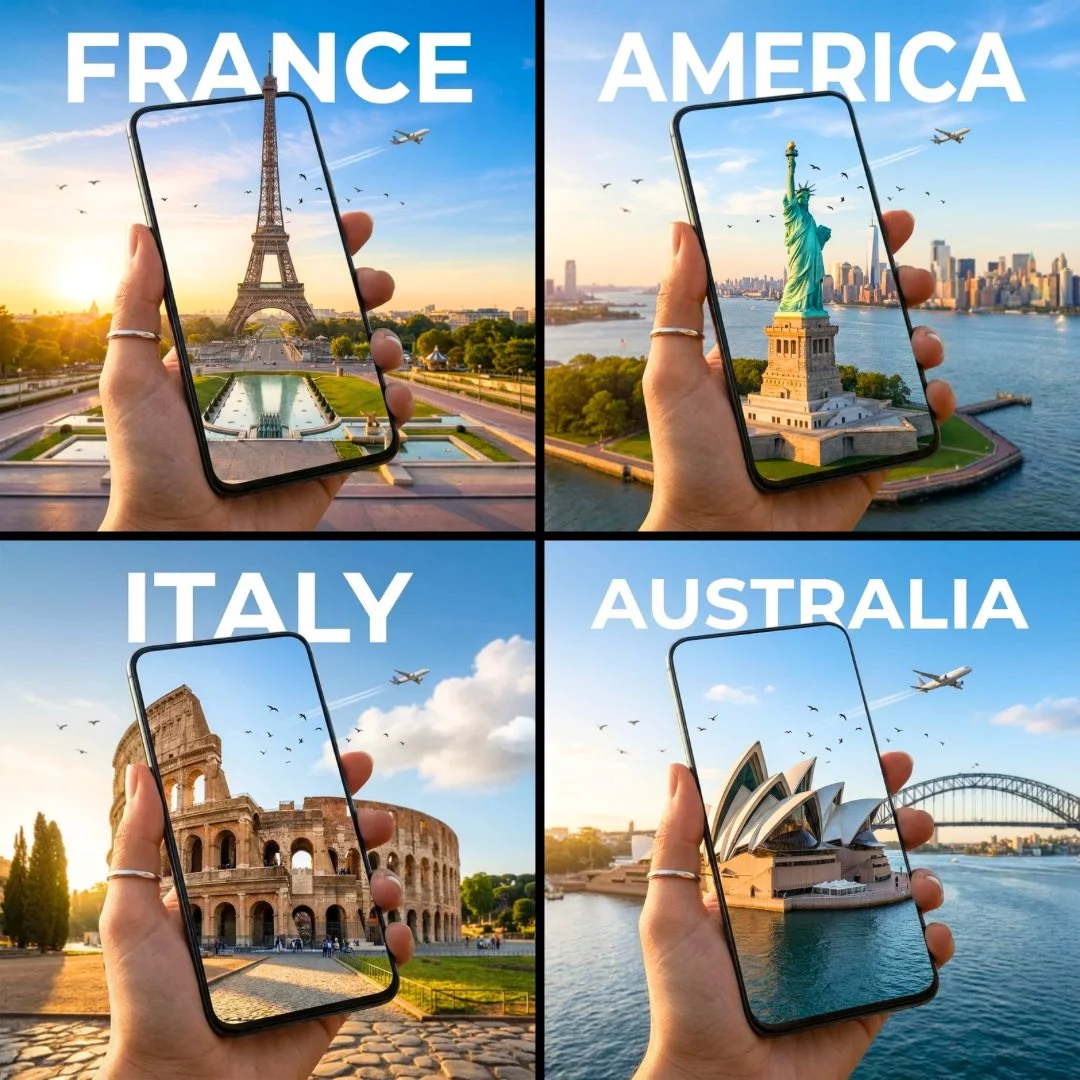
A series can share its framing, colors, and visual treatment while showing different subjects or settings. Start from a reference you like, identify the elements to retain, and describe the change. Compare each result with the source so unwanted changes do not become part of the next edit.
From a Single Image to a Useful Asset
Decide where the image will be used before choosing the composition and level of detail.
Campaign and Social Graphics
Compose for the final placement
Create a visual around the subject and message, leaving space for copy or a logo. Use the intended aspect ratio from the start, then check the image at the size your audience will see.
Characters and Environment Concepts
Explore a direction before production
Use Seedream to compare costume ideas, materials, or locations. Keep the references that define the concept and change one design choice at a time. Treat the result as visual development rather than a finished game asset.
Product Scenes and Editorial Images
Place the product in a useful context
Supply a clear product reference and describe its setting, surface, and lighting. Compare the output with the original for shape, color, labels, and included parts before using it to represent the product.
Reference Images for Seedance
Decide the appearance before animation
Prepare a clean subject and a composition suited to the intended shot. Download the chosen image and use it in the video generator as a starting frame or visual reference. Image preparation sets the look; the video brief describes what happens next.
Write an Edit That Says What Should Change
Give Seedream a clear distinction between the part to revise and the details to retain.
Change the Background
Retain the subject
Identify the subject that should stay and describe the replacement setting. Include any lighting change needed to make the subject fit, then inspect hair, edges, and shadows for unwanted changes.
Adjust the Composition
Make room for the message
Explain where the subject should sit and which area needs open space. Use a matching aspect ratio in the interface. Check that the result leaves genuinely usable room rather than filling it with new objects.
Revise Color or Material
Keep shape and identity
Specify the surface or object to change, the desired treatment, and the details to preserve. Avoid describing a completely new product when the goal is a targeted variation of the original.
Match a Reference Style
Distinguish appearance from treatment
Identify the image that supplies the subject and the one that supplies the style. Explain whether pose, outfit, and composition should remain, so a style change does not unintentionally become a character redesign.
Make your image brief easier to follow
- • Name the main subject - Establish what the viewer should notice first, then describe the setting and supporting elements.
- • Separate the reference roles - Identify which image guides appearance, composition, or style instead of expecting every reference to control everything.
- • Specify any visible wording - Give the exact short text you want and where it belongs. Check spelling, numbers, and legibility in the result.
- • Choose the canvas in the interface - Set aspect ratio and resolution in the generator. Leave space in the composition for a headline, crop, or later movement when needed.
How to Use Seedream on Seedancer
Move from a visual brief to a result you can inspect, refine, and download.
Start from Text or an Image
Choose text to image for a new composition. Choose image to image to edit a picture or combine reference guidance, then upload the images you need.
Describe the Result
For a new image, describe subject, composition, and style. For an edit, explain what changes and what stays. Select the aspect ratio and available resolution before generating.
Compare and Refine
Inspect the result at a useful size, paying attention to text, edges, and subject details. Download your chosen image or use it as the starting point for a further edit.
Take Your Image into a Video Project
A finished image can become the starting frame for Seedance or a portrait for an avatar. Prepare spoken audio separately when your video workflow calls for it.
Seedream Image Creation Questions
Answers about generation, editing, reference images, and preparing your next visual.
Give Your Image a Clear Direction
Start with an idea or a picture you want to change. Create the next version with Seedream.