Seedream 5.5 AI Image Generator for Characters & Scenes
Seedream 5.5 is ByteDance's AI model for generating and editing still images from text and reference pictures. Use it on Seedancer to define a character, refine the setting, and compose an image that can stand alone or become the opening frame of a Seedance video.
What Seedream 5.5 Adds to Image Creation
Seedream 5.5 brings ByteDance's focus on more natural-looking images and steadier editing into a practical image workflow. Its updates address lighting, material detail, text rendering, and maintaining visual information across revisions. Native transparency also makes it useful for character cutouts, props, and graphics that will become part of a larger design.
For a character-led scene, those capabilities serve different stages. Generate the person's appearance first, develop the surroundings, then make focused changes to the image you want to keep. A background revision should have a clear goal: warmer light, a simpler setting, or more space beside the subject. Keeping that goal specific makes the next version easier to judge.
Open the AI image generator, select Seedream 5.5, and choose text-to-image for a new concept or image-to-image to work from a reference. The walkthrough below follows one traveler from a character reference to a composed station scene.
Design the Character Before the Scene
A useful character reference makes the distinguishing details easy to see. For this concept, those details are short dark hair, a mustard-yellow raincoat, navy trousers, brown boots, and a navy backpack. The neutral background keeps the face, clothing, and silhouette readable before a busy location is introduced.
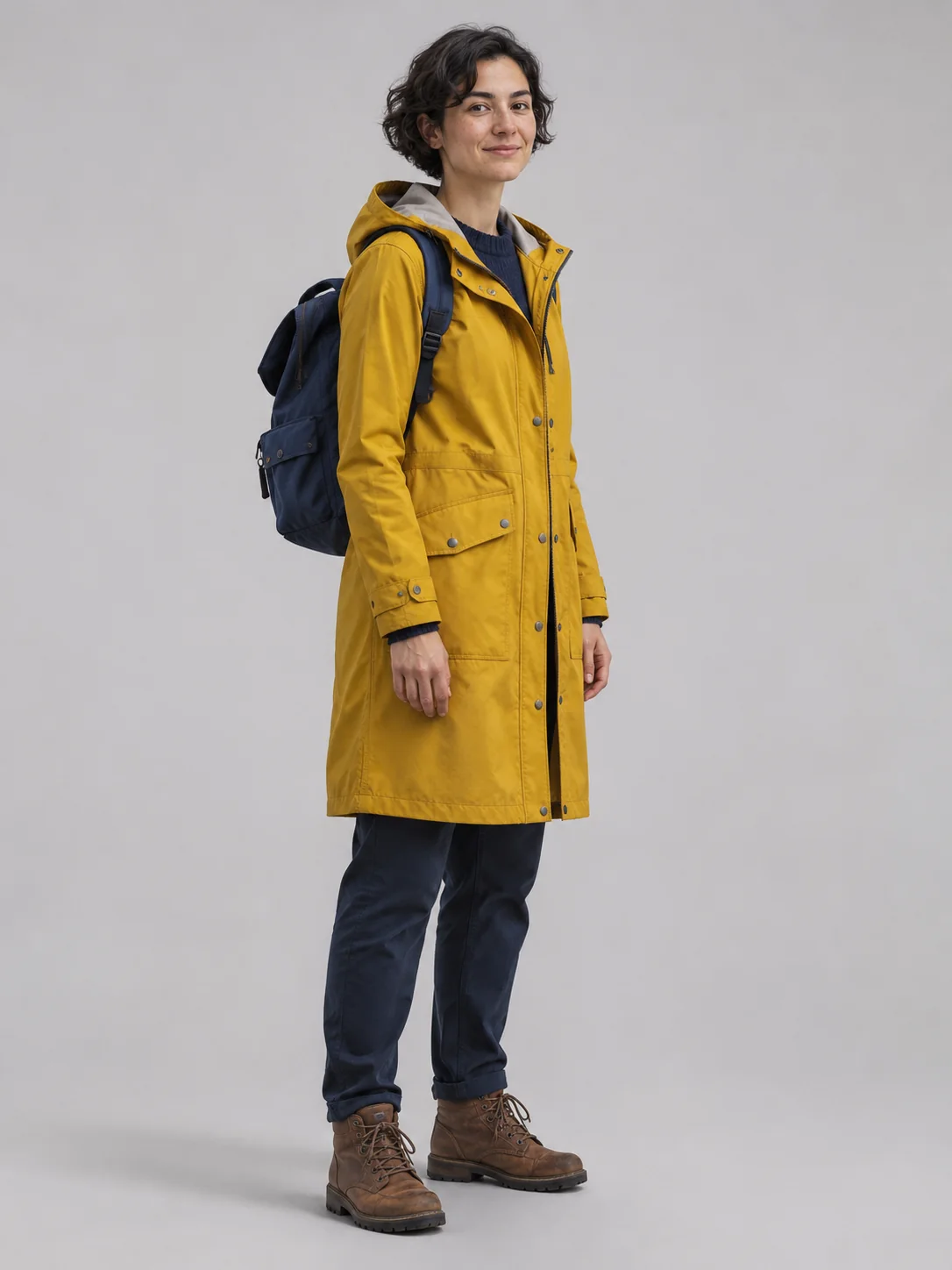
Use a 3:4 canvas for a full-body reference like this. Describe the character's appearance, pose, and clothing together, and ask for enough margin to keep the head and feet inside the frame. A neutral stance is a useful starting point when you have not decided the final action.
When using several references, give each one a job. A portrait can guide the face, a full-body image can guide the outfit, and a location picture can guide the setting. In the instruction, identify which image controls each part. Avoid letting a location reference quietly replace the character's clothes or posture.
Once the design works, keep that image available as a reference for later revisions. Compare the face, coat shape, backpack, and proportions when choosing a new version. If one detail drifts, address that detail with a focused edit instead of changing the whole scene description.
Compose a Frame That Leaves Room for Motion
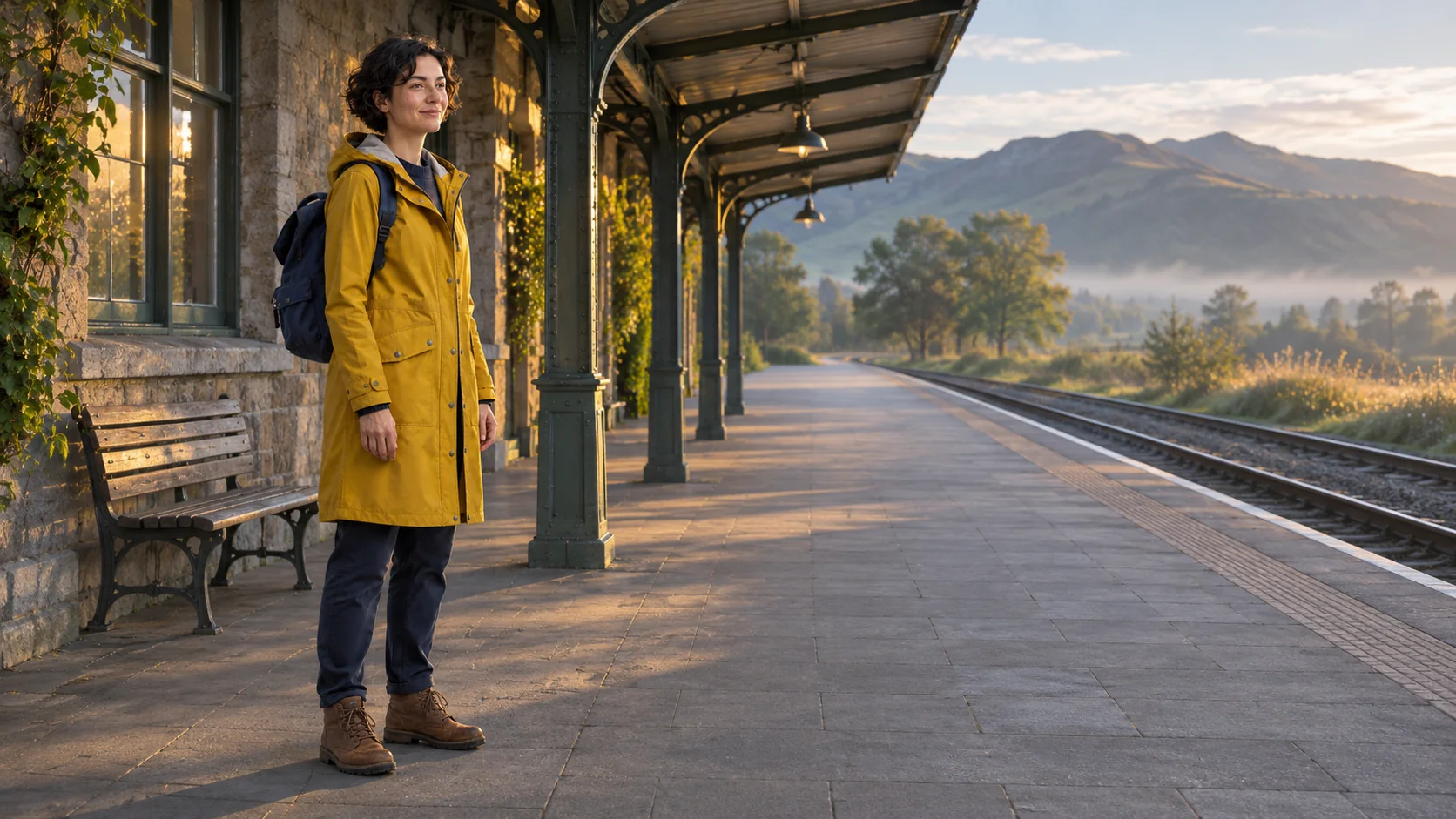
The scene concept places the traveler on the left of a 16:9 image. The open platform to the right creates room for a later walking action, while the visible boots and contact shadow connect the person to the ground. The station structure provides depth without hiding the subject.
In image-to-image mode, upload the character reference and describe the new setting. Separate the details to preserve from the changes to make. This teaching prompt gives Seedream 5.5 a specific composition task:
Keep the traveler's face, short dark hair, yellow raincoat, navy trousers, brown boots, and navy backpack from the reference. Place the traveler in the left third of a quiet outdoor train platform at sunrise, standing and facing right. Show the whole body with both feet on the platform. Leave open walking space to the right, with soft morning light, natural shadows, and a clear separation between the person and the station background. Use an eye-level wide composition.
Set 16:9 in the generator for the wide scene. Start with 1K to explore the composition, then choose 2K to refine the selected direction.
For revisions, change one visual decision at a time. If the setting is too busy, simplify the background while preserving the traveler and position. If the light feels disconnected, align the character's shadows with the platform. For a vertical version, switch to 9:16 and recompose around the subject rather than expecting a wide frame to crop cleanly.
Use Your Seedream 5.5 Image in Seedance
Finish the still image before planning the motion. Check the pose, visible hands and feet, clothing details, and available space. A coherent starting image gives you a clearer basis for describing what happens next.
- Open the generated image's actions and choose Image to Video. Seedancer carries that image into the video tool as a starting frame.
- Select the Seedance model you want to use and check the loaded frame. The image action transfers the picture; your video model choice determines the available video settings.
- Describe the action and camera movement. For this scene, begin with a short walk along the platform and a gentle camera follow. Keep the first attempt focused so you can see how the subject and composition develop.
Use a starting frame when the video should begin from that composition. Use reference mode when an image should guide the person, setting, or style without fixing the opening shot. The Seedance 2.5 guide explains those video modes and how to choose the inputs for each.
Seedream 5.5 Settings for Stills and Starting Frames
Seedancer offers 1K, 1.5K, and 2K output with Seedream 5.5, up to 10 reference images, and PNG or JPG downloads. Choose the canvas for the image's purpose, then choose the output size for the level of detail you need.
| Image goal | Suggested setup | What to resolve before moving on |
|---|---|---|
| Full-body character reference | 3:4; 1K for exploration, then 1.5K or 2K | Face, outfit, silhouette, and complete hands and feet |
| Wide scene or opening frame | 16:9; opaque background | Subject placement, lighting, ground contact, and room for action |
| Vertical scene | 9:16; recompose for the narrow canvas | Headroom and space around the planned movement |
| Isolated character or prop | Transparent background; PNG | Complete outline, edge detail, and separation from unwanted objects |
Choose Opaque for a complete scene and Transparent for an independent asset. Auto leaves background selection to the generation. For transparency, keep PNG selected so the file can retain its alpha channel. An isolated character is useful in a design layout; a video opening frame benefits from an established environment and consistent lighting.
Seedream 5.5 vs Seedream 5.0 Lite
Choose between these models around the image you need to finish. Seedream 5.5 fits a workflow that develops a scene through focused edits or creates transparent assets. Seedream 5.0 Lite is another option when you want 2K or 3K output or need a larger reference set: its image-to-image mode accepts up to 14 images, compared with 10 for 5.5.
For the traveler scene, compare both models using the same face and clothing reference and the same composition brief. Check the backpack shape, coat details, and how the figure fits the setting, then choose the result that best matches the scene you planned.
Seedream 5.5 vs Nano Banana 2.1 for Scene Design
Nano Banana 2.1 offers 1K, 2K, and 4K output on Seedancer and accepts up to 10 references. It also has additional canvas shapes, including 4:5 and 4:1. Those options matter when a character illustration needs a larger final image or a scene must fit a specific layout.
Seedream 5.5 covers the 3:4 character reference, 16:9 scene, and 9:16 vertical frame used in this workflow, with native transparent output for separate assets. Start there when the task centers on revising the scene or preparing a cutout; try Nano Banana 2.1 when 4K or one of its extra ratios is part of the brief. Keep the subject and composition instructions consistent when comparing results, then choose the image that best preserves the details your scene depends on.
Frequently Asked Questions
Give Your Next Scene a Clear Starting Image
Build the character, settle the composition, and refine the details with Seedream 5.5. Keep the finished image or take it into your next Seedance video.
Create with Seedream 5.5